Get Proton VPN for Windows
The Proton VPN app for Windows is the best way to stay secure and private when surfing the internet. It is open source, easy to use, and packed with useful security features.
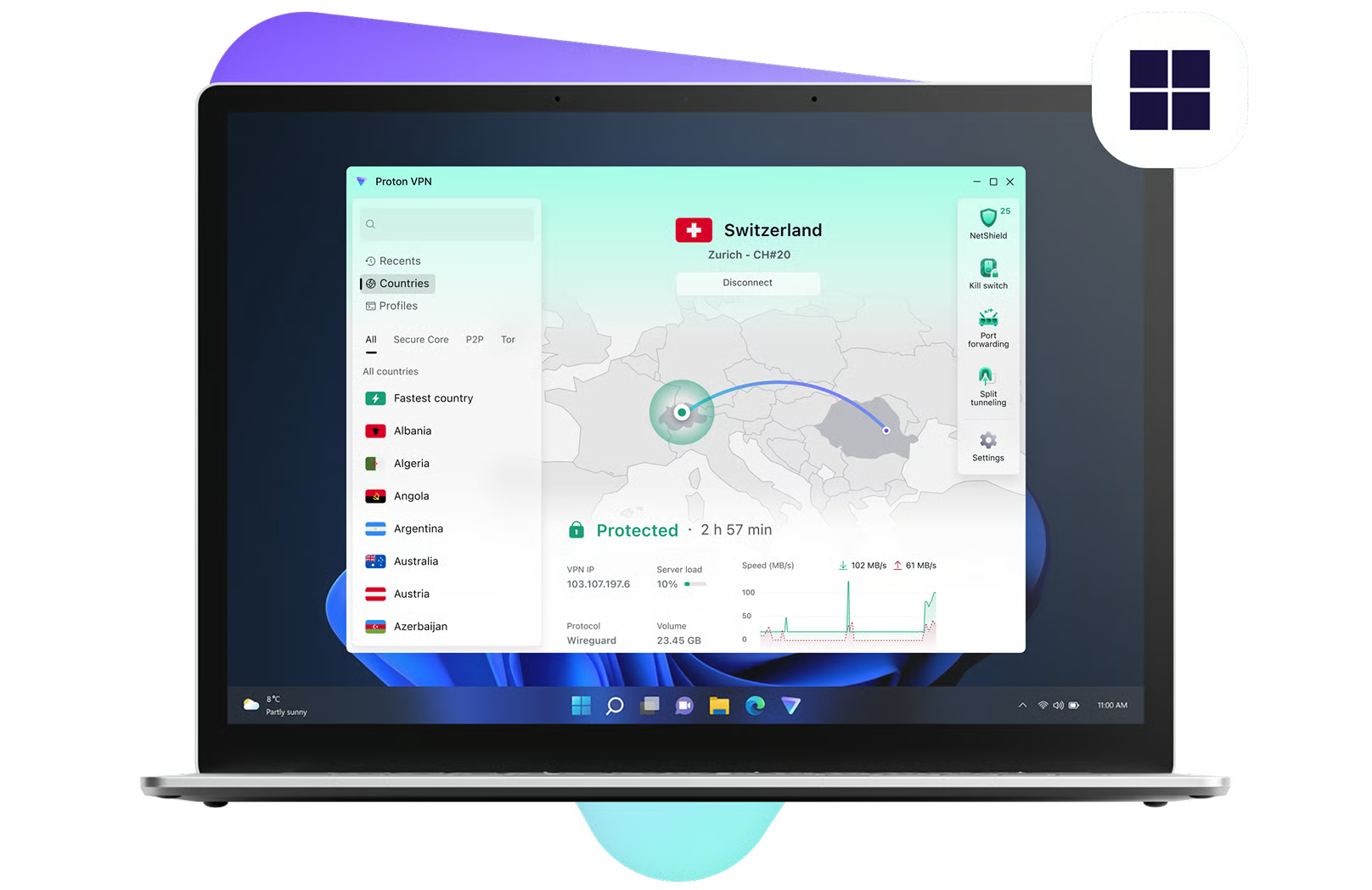
The Proton VPN app for Windows is the best way to stay secure and private when surfing the internet. It is open source, easy to use, and packed with useful security features.
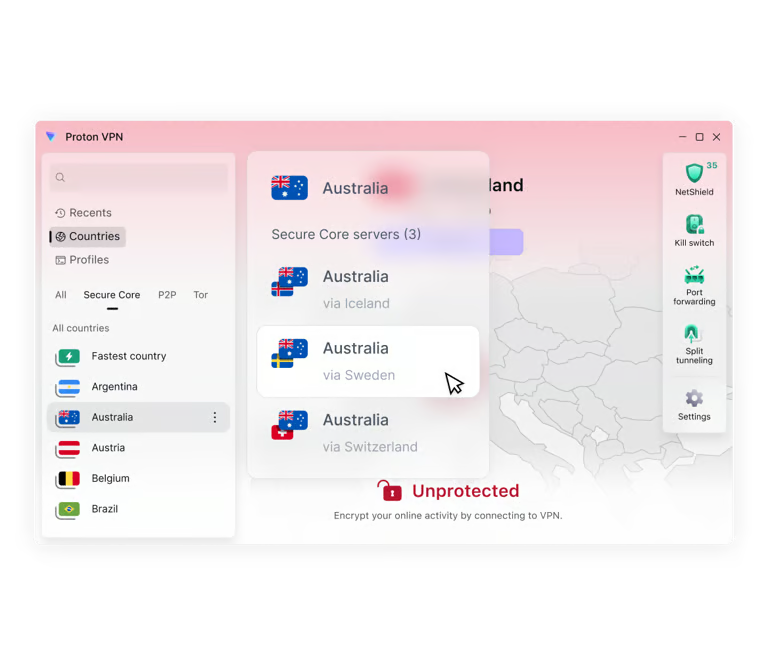
Proton VPN offers a special ARM version of our app for the Microsoft Surface Laptop, Surface Pro, Samsung Galaxy Book S, Lenovo Flex 5G, HP Elite Folio, Acer Spin 7, and other ARM Windows devices. Browse the internet privately with native ARM support, while enjoying all advanced features from our regular Windows app.
To start using Proton VPN on Windows, sign up for free or buy a paid Proton VPN Plus account. With our paid plans, you can use Proton VPN on up to 10 devices at the same time, connect to over 20,000 high-speed servers in over 140 countries, and access premium features.
Download and install the correct Windows distribution for your device. Once the app is installed on your Windows device, run it and log in with your Proton VPN username and password. Proton Mail users already have a Proton VPN account and can sign in with existing Proton credentials.
You can automatically connect to the fastest VPN server for your location or choose to connect to any specific server that is available on your plan. The data traveling between your device and the VPN server is encrypted, meaning:
The Proton VPN app for Windows has been specifically engineered to be secure, fast, and easy to use. You can use Proton VPN to stream your favorite shows, share files over BitTorrent, access censored content and protect your privacy. Proton VPN is a community-supported VPN service and our mission is to create an internet where privacy is the default. Founded by CERN scientists to ensure everyone can protect their right to privacy, Proton VPN offers one of the only free VPN services with no data limits, no logs, and no privacy-invading ads.
Sign up for a Proton VPN account, download our Windows app, and double click the downloaded file to start installation. A wizard will guide you through the rest of the process.
If you sign in to the app and click "Quick Connect", Proton VPN will automatically connect you to the fastest server depending on your location. It's that easy. If you're on a paid plan, you can also manually connect to a server in a particular country or a specialized server (for example, a Tor-enabled server).
You can use the Proton VPN Windows app to access content that has been blocked by your internet service provider, government, workplace, or college. To access it, simply connect to a VPN server in an area where that content is not censored. If you have a VPN Plus or Proton Unlimited account, you can also access popular streaming services by connecting to a Plus server.
To find out if your Windows computer uses an x64 or ARM64 processor:
1:Open the System Information tool. To do this, press Win + R to open the Run dialog ("Win" is the key with the Windows logo), type msinfo32 , and click Enter. Alternatively, search for System Information from the Start menu.
2:Go to System Summary → System Type. Your system architecture will be listed here.